
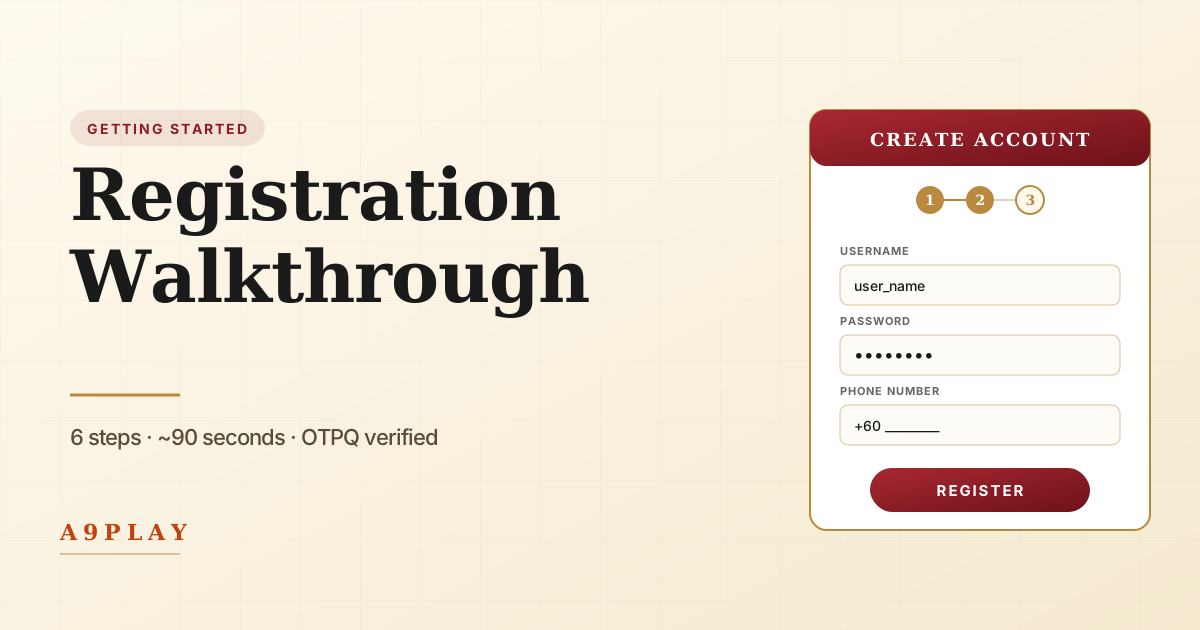
Creating an A9Play account takes about 90 seconds from start to finish. This guide walks you through every step, with screenshots descriptions for what each screen looks like and what to do if anything goes wrong.
Open the registration page
Visit a9playmy8.com in any mobile browser. On the homepage, tap any Register Now or Register button — the hero section, the navigation bar, and the call-to-action banner all link to the same official registration page.
You'll be taken to the registration form on a9play5.com — this is the official A9Play registration backend.
Choose your language
The top of the form has a language switcher: English, 中文, or Bahasa Malaysia. Pick whichever you prefer — you can change it later in your account settings.
Fill in your details
You'll see four required fields:
- Username — 6-16 characters, letters and numbers only. Choose something memorable.
- Password — minimum 8 characters. Mix letters, numbers, and a symbol for security.
- Confirm password — type the same password again.
- Phone number — your active mobile number, with country code (e.g., +60 for Malaysia). This is where the verification code will arrive via OTPQ.
Tap Next when complete.
Tip: Use a password manager (Bitwarden, 1Password, Apple Keychain) to generate and save a strong password. You won't have to remember it manually.Receive the OTPQ code
Within a few seconds, OTPQ on your phone will display a 6-digit verification code. The code is valid for 5 minutes.
If you don't see the code:
- Check that OTPQ is installed and linked to your phone number
- Make sure your phone has internet connectivity
- Tap Resend code on the registration form
Enter the code
Type the 6-digit code into the verification field on the registration form. Tap Verify.
If the code is rejected:
- Make sure you typed it correctly
- Check your phone's clock is set to network time (Settings → Date & Time → Set Automatically)
- Request a fresh code with Resend
You're registered — now log in
Account creation is complete. You'll be redirected to the login page. Enter your username and password, complete one more OTPQ verification, and you're inside.
From this point, you can use the same account on any of your devices: Android, iPhone, Huawei, or H5 web. Just install A9Today on each device and log in with the same credentials.
What to do next
- Bookmark a9playmy8.com in your browser for quick access
- Save your username and password in a password manager
- Save your OTPQ backup codes somewhere safe (in case you lose your phone)
- Verify your phone number is current in account settings
Common registration issues
'Username already taken'
Someone else has registered that exact username. Try adding numbers (e.g., yourname2026) or use a different word.
'Phone number already registered'
You may already have an A9Play account on this phone number. Try logging in instead, or use the password recovery option.
OTPQ code never arrives
Three common causes: (1) OTPQ isn't installed on your phone, (2) OTPQ isn't linked to the phone number you're using, or (3) your phone has no internet. Install OTPQ from otp-q.com first if you don't have it.